Are you tired of seeing unwanted auto suggestions every time you type in an input field? Those pop-up hints can slow you down and clutter your screen, making your experience frustrating.
But what if you could easily remove them and regain control over your typing? You’ll discover simple, effective ways to stop auto suggestions from appearing. Keep reading, and you’ll learn how to make your input fields cleaner, faster, and tailored just for you.
What Are Auto Suggestions?
Auto suggestions are those little pop-up hints that appear when you start typing in an input field. They aim to make your typing faster by guessing what you want to enter based on previous inputs or common phrases. But have you ever found them more distracting than helpful?
Understanding what auto suggestions really are can help you decide whether you want to keep them or remove them from your input fields.
Definition Of Auto Suggestions
Auto suggestions are dynamically generated text prompts that appear as you type. They predict the rest of your input based on your typing history or preset data. This feature is common in search bars, forms, and address fields.
How Auto Suggestions Work
When you start typing, the system compares your input against stored data. It then displays a list of possible completions or corrections. This process happens instantly to save you time and effort.
Why Auto Suggestions Are Used
- Speed up data entry by reducing keystrokes
- Help users avoid spelling mistakes
- Provide quick access to frequently used or popular terms
While these benefits are clear, do you find that sometimes the suggestions don’t match what you want to type? This mismatch can lead to frustration and errors.
Common Situations Where Auto Suggestions Appear
You often see auto suggestions in:
- Search engines
- Login forms
- Address or email input fields
- Online shopping sites
Think about your last online form experience—did the suggestions help or slow you down?
Reasons To Disable Auto Suggestions
Auto suggestions appear automatically as users type in input fields. While helpful, they do not fit every situation. Many developers and users choose to disable them for specific reasons.
Understanding these reasons helps decide when to remove auto suggestions. It improves user experience and website performance.
Enhancing Privacy And Security
Auto suggestions store and display previous inputs. This may expose sensitive information to others. Disabling suggestions protects user privacy and data security.
Reducing User Distraction
Suggestions can distract users from their original intent. They may cause confusion or slow down typing. Turning off suggestions keeps users focused and speeds up input.
Improving Form Accuracy
Sometimes, auto suggestions suggest incorrect or irrelevant entries. This leads to wrong form submissions. Disabling suggestions ensures users enter accurate and intended information.
Controlling User Experience
Designers want full control over how forms behave. Auto suggestions may clash with custom features or styles. Removing them helps maintain a consistent and clean user interface.
Optimizing For Mobile Devices
Auto suggestions can take up screen space on small devices. This reduces the visible area for typing and reading. Disabling suggestions improves usability on smartphones and tablets.
Disabling Auto Suggestions In Html
Disabling auto suggestions in HTML helps control user input experience. It stops browsers from showing past entries or predictions in input fields. This is useful for sensitive data or when a clean form is needed. HTML provides simple ways to manage this behavior directly in the code.
Using The Autocomplete Attribute
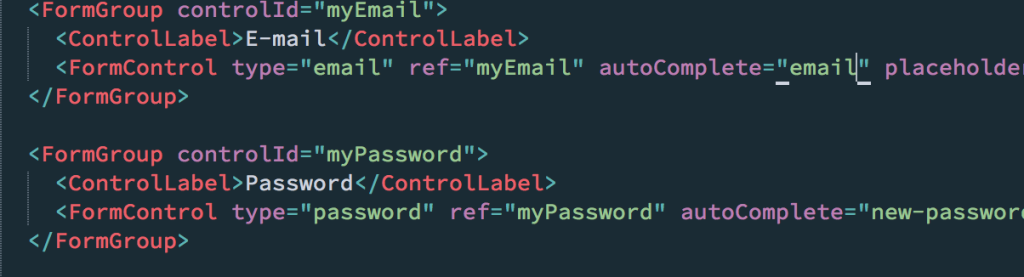
The autocompleteattribute controls auto suggestions in input fields. Set it to offto disable suggestions. This works for most browsers and input types.
Example:
This attribute can be added to individual inputs or entire forms. It helps prevent the browser from filling values automatically.
Handling Different Browsers
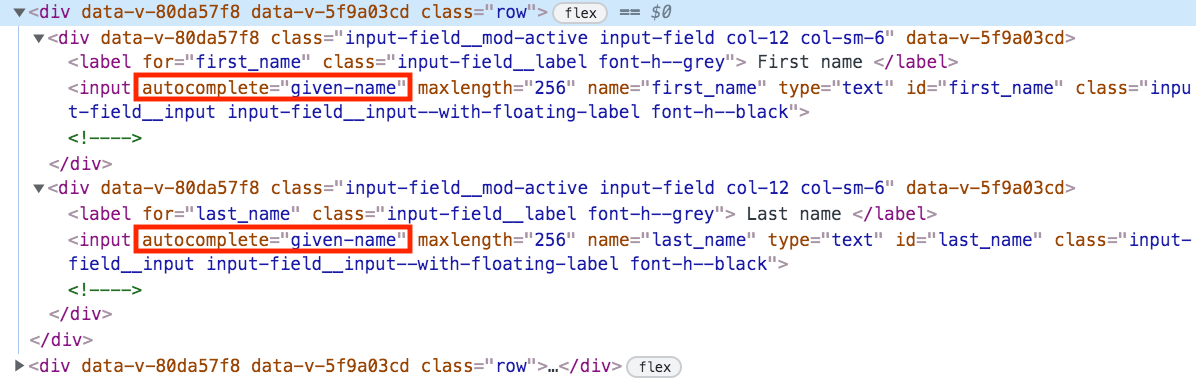
Browsers handle auto suggestions differently. Some ignore autocomplete="off"for specific fields like passwords. Others might show suggestions despite the attribute.
To improve consistency:
- Use unique or random
nameattributes on inputs. - Try
autocomplete="new-password"for password fields. - Clear saved data manually in the browser settings if needed.
Testing on multiple browsers ensures the desired result. Adjust the code depending on the browser behavior.
Credit: tristrumtuttle.medium.com
Removing Auto Suggestions In Javascript
Removing auto suggestions in JavaScript can improve user experience by making input fields cleaner. Auto suggestions sometimes distract users or show irrelevant options. JavaScript offers ways to control and remove these suggestions effectively. This helps keep forms simple and focused.
Using Event Listeners
Event listeners track user actions on input fields. Listening to events like inputor keydownallows you to control suggestions.
For example, you can clear the input field or prevent default browser behavior. This stops unwanted auto suggestions from appearing.
- Attach an event listener to the input element
- Use the
event.preventDefault()method to block auto suggestions - Clear or modify the input value as needed
This method gives you real-time control and customization.
Modifying Input Field Properties
Input fields have properties that affect auto suggestions. Setting these properties can disable or limit suggestions.
- Use
autocomplete="off"to stop browser suggestions - Set
spellcheck="false"to avoid spell check hints - Apply
autocorrect="off"on mobile devices
These attributes tell browsers not to show suggestions or corrections.
Modifying input attributes is simple and works across most browsers. Combine this with JavaScript for better control.
Managing Auto Suggestions In Css
Managing auto suggestions in CSS gives you control over the user experience without diving into complex JavaScript. You can tweak how these suggestions appear or even hide them completely using simple style rules. This approach keeps your input fields clean and focused, especially when browser defaults don’t fit your design.
Hiding Dropdown Menus
If you want to remove the annoying dropdown suggestions that browsers show, CSS can help you hide them effectively.
- Use
autocomplete="off"on your input fields to tell browsers not to suggest previous inputs. - Apply
input::-webkit-autofilland related pseudo-elements to style or hide autofill backgrounds on WebKit browsers. - Set
display: none;on the suggestion dropdown using browser-specific selectors if available.
Keep in mind, some browsers ignore CSS-only hiding of suggestions due to security or usability reasons. Have you noticed how your favorite browser handles this? Testing across browsers is key to getting consistent results.
Custom Styling Techniques
Sometimes, hiding suggestions isn’t enough. You might want to style them to match your site’s look or make them less intrusive.
- Target input focus styles to reduce distraction, like changing border or shadow colors.
- Use
::-webkit-calendar-picker-indicatoror similar pseudo-elements to style icons inside inputs. - Apply custom fonts, colors, and spacing to the input field to make suggestions blend better.
Custom styling can improve accessibility by making suggestion menus easier to read or interact with. How could subtle styling changes boost your form’s user experience?
Credit: tristrumtuttle.medium.com
Best Practices For User Experience
Creating a smooth user experience is key when designing input fields. Removing auto suggestions can reduce distractions and speed up the process. Yet, it is important to understand when to keep these suggestions for user benefit.
When To Keep Auto Suggestions
Auto suggestions help users by showing possible matches as they type. This feature is useful in long forms or search boxes. It reduces typing effort and helps find correct terms quickly.
Keep auto suggestions when:
- The input field expects common or repeated entries.
- Users may not know the exact spelling or options.
- Speed and accuracy improve with suggested inputs.
- The suggestions are relevant and updated regularly.
Removing suggestions in these cases might confuse users or slow them down.
Alternatives To Auto Suggestions
There are other ways to assist users without auto suggestions. These options improve experience while keeping the input field clean.
- Placeholder Text:Gives a hint about the expected input.
- Input Masks:Guides format, such as phone numbers or dates.
- Dropdown Menus:Shows fixed options to choose from.
- Recent Searches:Offers past entries instead of live suggestions.
- Validation Messages:Provide instant feedback on input errors.
Choosing the right alternative depends on the form’s purpose and user needs.
Troubleshooting Common Issues
Troubleshooting common issues helps ensure auto suggestions are fully removed. Sometimes, changes may not show up due to browser or code problems. Checking these areas can fix most issues quickly.
Dealing With Browser Caching
Browsers save old versions of pages to load faster. This cache may keep showing the input field with suggestions. Clear the browser cache to see recent changes.
- Open browser settings.
- Find the option to clear browsing data or cache.
- Select cached images and files.
- Clear the data and reload the page.
Using private or incognito mode can also bypass cached data. This helps check if the problem is cache-related.
Addressing Compatibility Problems
Different browsers handle auto suggestions in various ways. Some may ignore standard code to disable suggestions. Test your input field in multiple browsers to spot issues.
- Try Chrome, Firefox, Edge, and Safari.
- Look for differences in suggestion behavior.
- Use vendor-specific attributes if needed.
- Update your browser to the latest version.
Some browsers require extra code or settings to fully remove suggestions. Check official browser documentation for specific instructions.

Credit: www.reddit.com
Frequently Asked Questions
How Do I Disable Auto Suggestions In Html Input Fields?
You can disable auto suggestions by adding autocomplete=”off” to your input field. This attribute tells browsers not to show past entries. It is simple and effective for most modern browsers, improving user experience when suggestions are unwanted.
Why Remove Auto Suggestions From Input Fields?
Removing auto suggestions enhances privacy and prevents incorrect autofill data. It also improves form usability when suggestions cause confusion. This is especially useful for sensitive or unique data entry fields.
Can Javascript Control Auto Suggestions In Inputs?
Yes, JavaScript can dynamically set the autocomplete attribute to “off”. This allows developers to enable or disable suggestions based on user actions or context, providing flexible control over input behavior.
Are There Browser Differences In Handling Auto Suggestions?
Yes, some browsers may ignore autocomplete=”off” for certain fields like email or password. Testing across browsers is essential to ensure consistent behavior. Workarounds may involve additional scripting.
Conclusion
Removing auto suggestions in input fields can improve your user experience. It helps keep your forms clean and simple. You can control this feature using easy HTML or JavaScript steps. Try these methods to make your website friendlier for users.
Remember, clear input fields reduce errors and speed up form filling. Keep testing your changes to ensure they work well. Small tweaks like these make a big difference in usability. Give it a try today and see the results yourself.