Are you ready to make sure your AWS Auto Scaling works exactly when you need it? Testing your Auto Scaling setup is crucial to avoid surprises during traffic spikes or sudden drops.
But how do you test it without risking your live environment or wasting resources? You’ll discover simple, effective steps to test your Auto Scaling in AWS confidently. By the end, you’ll know how to verify your scaling rules, simulate real traffic, and keep your applications running smoothly no matter what.
Let’s dive in and make your AWS Auto Scaling rock solid!
Auto Scaling Basics
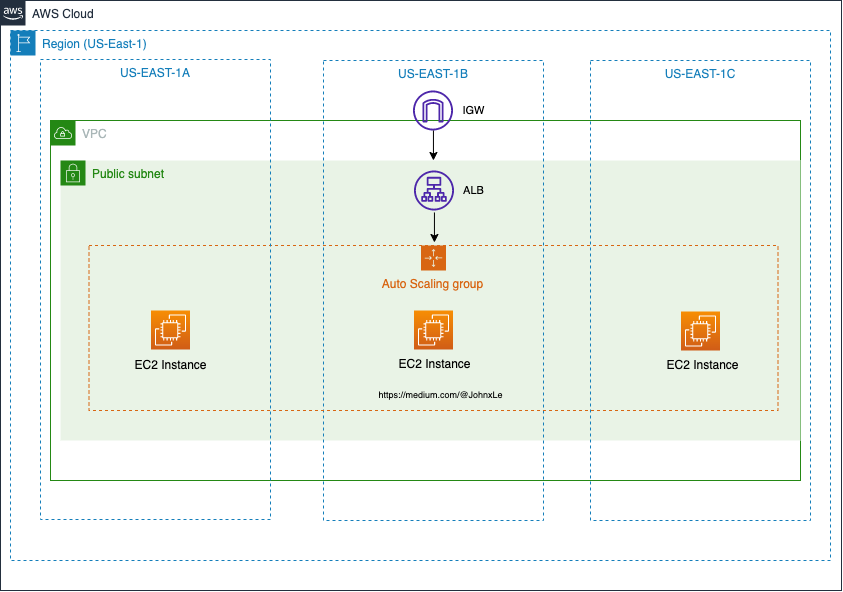
Auto Scaling is a key feature in AWS that helps manage your application’s capacity. It adjusts the number of running instances automatically. This keeps performance steady and controls costs. Understanding the basics is essential before testing Auto Scaling effectively.
Key Concepts
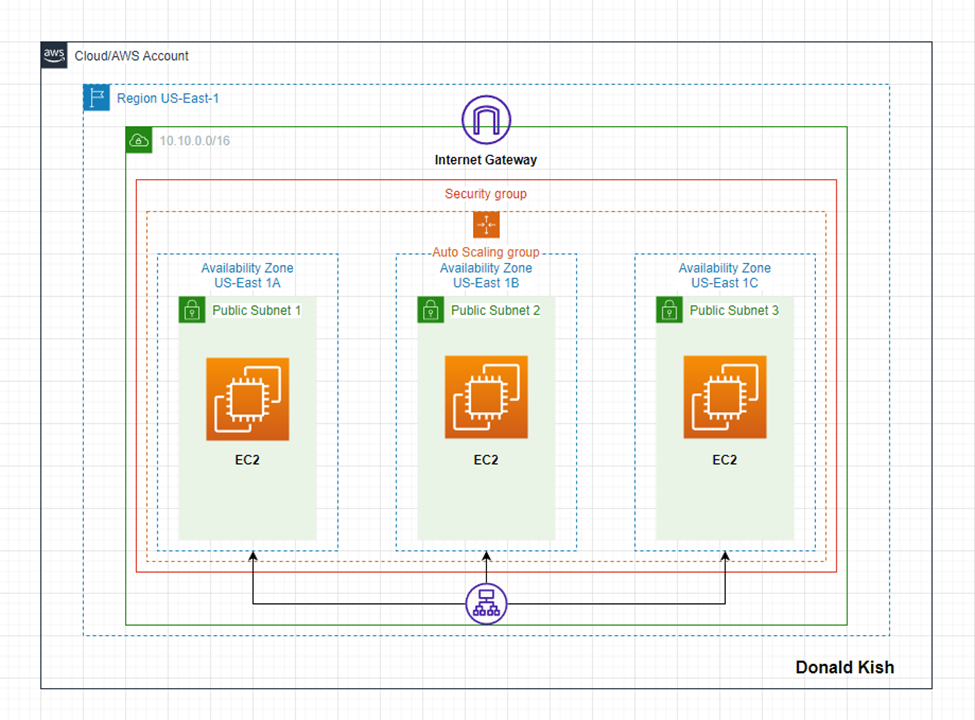
- Auto Scaling Group:A collection of EC2 instances managed together.
- Launch Configuration:A template for instance settings like AMI and instance type.
- Scaling Policies:Rules that define when to add or remove instances.
- CloudWatch Alarms:Monitor metrics to trigger scaling actions.
- Desired Capacity:The ideal number of instances running at a time.
Benefits Of Auto Scaling
- Maintains application availability during traffic changes.
- Reduces costs by running only needed instances.
- Automatically replaces unhealthy instances.
- Improves fault tolerance and reliability.
- Supports seamless user experience under load.
Credit: medium.com
Setting Up Auto Scaling Groups
Setting up Auto Scaling Groups (ASGs) is a key step to ensure your applications can handle varying loads efficiently. It helps maintain performance and control costs by adjusting the number of running instances based on demand. Let’s break down how to properly configure these groups to get the best results from your AWS environment.
Configuring Launch Templates
Launch templates define the blueprint for the instances your Auto Scaling Group will create. You specify details like the Amazon Machine Image (AMI), instance type, key pairs, security groups, and storage options here.
Using launch templates offers flexibility and consistency. For example, if you want to switch instance types or update configurations, you just modify the template, and the ASG can use the new version without disruption.
Think about the specific needs of your app. Does it require a GPU-enabled instance or more storage? Customize the launch template accordingly. This reduces errors and speeds up the scaling process.
Defining Scaling Policies
Scaling policies tell your ASG when and how to add or remove instances. You can choose between simple policies, target tracking, or step scaling depending on your workload patterns.
Target tracking policies act like a thermostat, maintaining a specific metric such as CPU utilization. This approach is straightforward and effective for steady workloads.
Step scaling allows more precise control by scaling in multiple steps based on thresholds. This is useful if you expect sudden traffic spikes or drops.
Ask yourself: How quickly should your system respond to traffic changes? Immediate scaling might save performance but increase costs, while delayed scaling could risk slow response times.
Simulating Load For Testing
Simulating load is a crucial step in testing Auto Scaling on AWS. It helps you understand how your application responds under different traffic conditions. Without generating realistic traffic, you might miss hidden bottlenecks or scaling issues.
Creating Synthetic Traffic
Synthetic traffic mimics real user interactions by sending artificial requests to your application. You can create scripts that simulate user behavior, such as browsing pages or submitting forms.
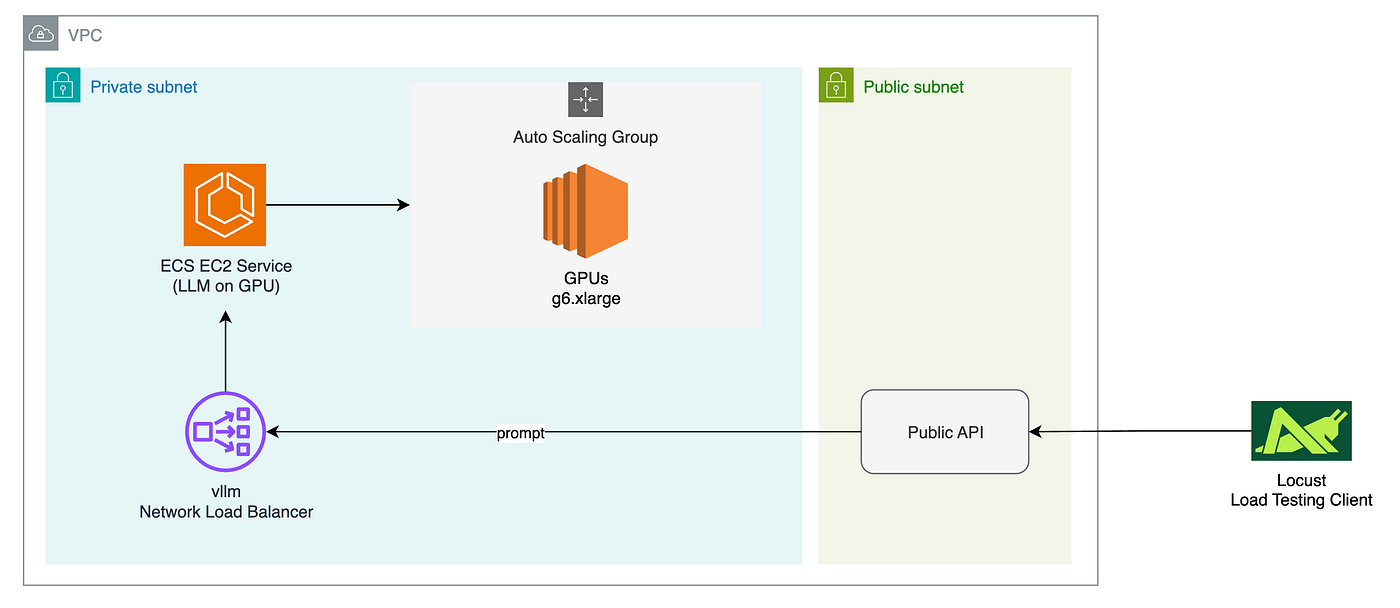
Tools like Apache JMeter or Locust allow you to build custom traffic patterns. These scripts can increase traffic gradually or spike it suddenly to test your Auto Scaling rules effectively.
Think about what kind of load your application usually handles. Is it steady or bursty? Simulating these patterns helps you see if your Auto Scaling reacts fast enough to keep performance smooth.
Using Aws Tools For Load Generation
AWS offers built-in services to help you generate load without setting up external tools. AWS CloudWatch Synthetics lets you create canaries that run tests at scheduled intervals, simulating traffic on your endpoints.
Another option is AWS Lambda combined with Amazon API Gateway to send bursts of requests. This serverless setup scales itself, so you can test Auto Scaling without worrying about your load generator’s limits.
Have you tried AWS Fault Injection Simulator? It’s mainly for chaos testing but can help create stress conditions to see how your Auto Scaling reacts under failure scenarios.
- Use CloudWatch to monitor metrics like CPU utilization and request count in real-time.
- Adjust your load patterns based on these insights to fine-tune your Auto Scaling policies.
- Schedule repeated tests to ensure consistent Auto Scaling behavior over time.
Credit: aws.plainenglish.io
Monitoring Auto Scaling Events
Monitoring Auto Scaling events is essential to ensure your AWS environment adapts correctly to changing workloads. Keeping a close eye on scaling activities helps you catch issues early, optimize costs, and maintain application performance. You might have seen sudden spikes in traffic—how did your scaling policies respond? This is where effective monitoring makes a difference.
Tracking Metrics In Cloudwatch
CloudWatch offers real-time metrics that reveal how your Auto Scaling group behaves under different conditions. Key metrics like GroupDesiredCapacity, GroupInServiceInstances, and GroupPendingInstancestell you how many instances are running, starting, or stopping.
Set up CloudWatch dashboards to visualize these numbers easily. You can create alarms that notify you if your instances don’t scale as expected. For example, if the CPUUtilizationmetric stays high but the number of instances doesn’t increase, that’s a red flag you need to investigate.
Analyzing Scaling Activity Logs
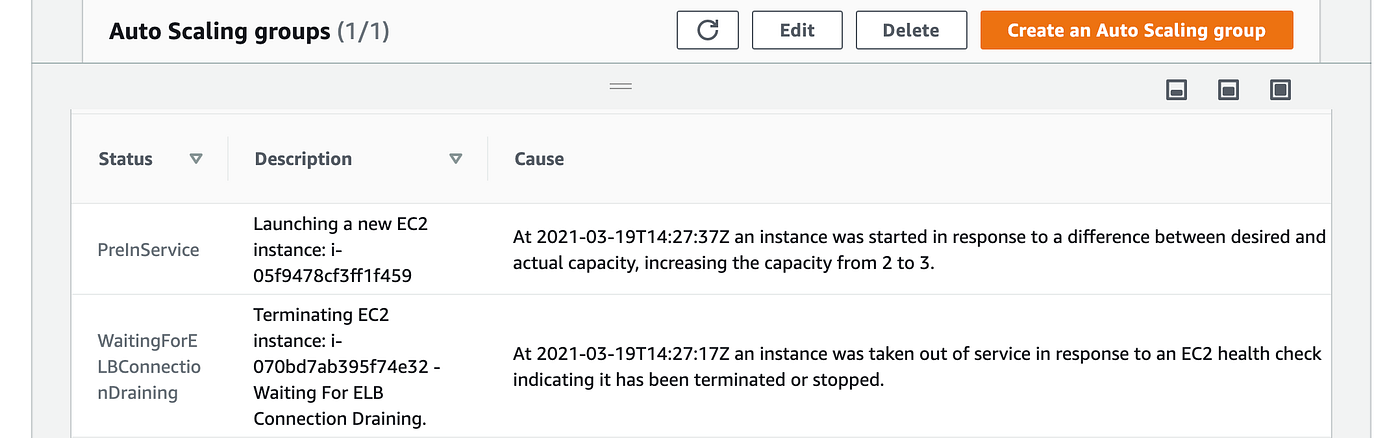
Scaling activity logs provide detailed records of every scale-in and scale-out event triggered by Auto Scaling. These logs show you the exact time an event happened and the reason behind it, such as a breach in a specific threshold or a manual intervention.
Review these logs regularly to spot patterns or unusual behavior. Have you noticed repeated scale-outs that don’t improve performance? This could indicate a misconfigured policy or an underlying issue in your application.
You can access these logs via the AWS Management Console or use the AWS CLI for more advanced filtering. Paying attention to error messages in these logs can save you hours troubleshooting later.
Validating Scaling Actions
Validating scaling actions is essential to confirm that your AWS Auto Scaling setup works properly. Testing these actions helps ensure the right number of instances launch and terminate as expected. It also verifies your application remains stable during scaling events.
Checking Instance Launch And Termination
Start by monitoring the Auto Scaling group for new instances. Confirm that instances launch when demand increases. Use the AWS Management Console or CLI to view active instances. Check instance health status to ensure they pass health checks.
Next, observe the termination of instances when demand drops. Confirm instances shut down gracefully without errors. Review Auto Scaling activity history for detailed logs on launch and termination events.
Ensuring Application Stability
Watch your application’s response during scaling actions. Ensure no downtime occurs when instances start or stop. Test key features to confirm functionality remains consistent.
Check load balancer metrics to verify traffic distributes evenly. Monitor server CPU and memory to detect bottlenecks or failures. Use CloudWatch alarms to catch issues early and maintain a smooth user experience.
Troubleshooting Common Issues
Troubleshooting common issues in AWS Auto Scaling can save you hours of frustration and downtime. Understanding where problems arise helps you fix them quickly and keeps your applications running smoothly. Let’s dive into key areas where you might face challenges and how to tackle them effectively.
Identifying Scaling Failures
Scaling failures often happen silently, making them hard to spot at first. Start by checking the Auto Scaling group’s activity history in the AWS Management Console. It shows detailed logs of scaling attempts and any errors that occurred.
Look for these red flags:
- Failed instance launches due to capacity limits.
- Health check failures causing immediate instance termination.
- Scaling policies not triggering as expected.
Have you ever noticed your instances not scaling up during traffic spikes? This could mean your CloudWatch alarms aren’t correctly set or your metrics aren’t reaching the thresholds you assumed. Review your alarm configurations and metric data closely to ensure they match real-world usage.
Resolving Configuration Errors
Many scaling issues stem from simple misconfigurations. Double-check your launch configuration or launch template for missing or incorrect settings like AMI IDs, instance types, or security groups. A single typo can prevent instances from launching.
Also, verify your IAM roles and permissions. Insufficient permissions can block Auto Scaling from creating or terminating instances. Have you ensured your Auto Scaling group has the right role attached?
Here’s a quick checklist to reduce configuration errors:
- Validate your launch template details.
- Confirm security groups allow necessary inbound/outbound traffic.
- Check that your scaling policies reference the correct CloudWatch alarms.
- Review IAM roles for full Auto Scaling permissions.
When I first set up Auto Scaling, I overlooked the instance profile attachment and spent hours troubleshooting. Fixing that single detail resolved the issue immediately. Attention to these small details can dramatically improve your troubleshooting experience.
Best Practices For Auto Scaling Tests
Testing auto scaling in AWS requires careful planning and consistent effort. Best practices help ensure your scaling policies work as expected under real conditions. Proper testing avoids unexpected downtime and improves application performance. Focus on regular testing and automation to keep your infrastructure reliable and efficient.
Scheduling Regular Tests
Set a fixed schedule for auto scaling tests. Regular tests catch issues early before they impact users. Plan tests during low-traffic periods to reduce risks. Use AWS CloudWatch to trigger test events automatically. Track test results over time to identify trends or failures. Consistent testing builds confidence in your scaling setup.
Automating Test Workflows
Create scripts to automate your auto scaling tests. Automation saves time and reduces human error. Use AWS Lambda functions or AWS Step Functions for workflows. Automate load generation to simulate real user demand. Integrate tests with CI/CD pipelines for continuous validation. Automated tests provide quick feedback on scaling behavior.
Credit: medium.com
Frequently Asked Questions
What Is Aws Auto Scaling And Why Test It?
AWS Auto Scaling automatically adjusts resources based on demand. Testing ensures your setup responds correctly to load changes. It helps avoid downtime and controls costs by verifying scaling policies and thresholds work as expected.
How Do I Simulate Load To Test Auto Scaling?
You can use load testing tools like Apache JMeter or AWS’s own Distributed Load Testing solution. Simulating increased traffic triggers scaling events, allowing you to observe instance launches and terminations in real-time.
What Metrics Should I Monitor During Auto Scaling Tests?
Monitor CPU utilization, network traffic, and request latency. These metrics indicate when scaling triggers activate. Watching CloudWatch alarms helps verify if your Auto Scaling group reacts properly to workload changes.
Can I Test Auto Scaling Without Impacting Production?
Yes, create a separate test environment mirroring production. Use identical Auto Scaling configurations to safely validate scaling behavior without affecting live users or services.
Conclusion
Testing auto scaling in AWS ensures your app handles traffic well. Start with clear goals and use realistic workloads. Check how instances launch and terminate during demand changes. Watch metrics closely to spot any issues fast. Simple tests help avoid costly downtime later.
Keep refining your setup to match user needs. This way, your system stays reliable and efficient under pressure.