Are you tired of your device automatically signing you in every time you open an app or website? It can be frustrating when you want a little more control over your privacy and security.
Knowing how to remove auto sign-in can save you from unwanted access and give you peace of mind. You’ll discover simple, step-by-step methods to turn off auto sign-in quickly and easily. Keep reading, and take back control of your accounts today.
Reasons To Disable Auto Sign In
Auto Sign In can seem like a handy feature at first. It saves time and spares you from typing your password repeatedly. But have you ever stopped to think about what risks come with it? Disabling Auto Sign In might feel like an inconvenience, but the benefits often outweigh the ease it offers.
Security Concerns
Leaving Auto Sign In enabled means anyone with access to your device can enter your accounts without a password. This is especially risky if your device is lost or stolen. You might think, “I trust the people around me,” but what if your device is misplaced in a public place?
Protecting Personal Information
Auto Sign In often stores your credentials, which can be vulnerable to hackers if your device gets infected with malware. Your personal emails, banking info, and social media accounts become easy targets. Isn’t your privacy worth a few extra seconds spent signing in manually?
Preventing Unauthorized Purchases
Many apps and websites save payment details for faster checkouts. Auto Sign In can make it too simple to make purchases without double-checking. Imagine your child or a friend accidentally making a costly purchase just because your account was signed in automatically.
Encouraging Better Password Habits
Disabling Auto Sign In pushes you to remember and use your passwords actively. This can encourage using stronger, unique passwords rather than relying on saved ones. Do you want to build better security habits or keep depending on a convenience that might backfire?
Control Over Account Access
When you sign in manually, you stay aware of when and where your accounts are accessed. Auto Sign In can hide this from you, making it harder to detect suspicious activity. How confident are you that your accounts haven’t been accessed without your knowledge?

Credit: learn.microsoft.com
Auto Sign In On Windows
Auto sign in on Windows allows users to skip the login screen and access their desktop directly. This feature saves time but can reduce security. Removing auto sign in helps protect your data and ensures only authorized users access the system. Several ways exist to disable this setting, each with different steps and effects.
Using Netplwiz Settings
Open the Run dialog by pressing Windows + R keys. Type netplwizand press Enter. This opens the User Accounts window. Uncheck the box labeled “Users must enter a user name and password to use this computer.” Click Apply. Enter your password to confirm changes. Click OK to save. Restart your computer to check if auto sign in is disabled.
Editing The Registry
Press Windows + R and type regedit. Press Enter to open the Registry Editor. Navigate to:
HKEY_LOCAL_MACHINESOFTWAREMicrosoftWindows NTCurrentVersionWinlogon
Find the values named AutoAdminLogon, DefaultUserName, and DefaultPassword. Set AutoAdminLogonto 0. Delete the DefaultPasswordentry to remove saved passwords. Close the Registry Editor and restart your PC.
Disabling Fast User Switching
Press Windows + R, type gpedit.msc, and press Enter to open the Local Group Policy Editor. Go to:
Computer Configuration > Administrative Templates > System > Logon
Find the setting named “Hide entry points for Fast User Switching.” Double-click it and select Enabled. Click Apply and OK. This stops users from switching accounts without signing out. Restart your computer to apply the change.
Auto Sign In On Macos
Auto Sign In on macOS lets you skip entering your password at startup. It makes logging in fast but lowers security. Turning this off adds protection to your Mac. You can control this option easily in your system settings.
Adjusting Login Options
Open System Preferences and go to “Users & Groups.” Click the lock icon and enter your password to make changes. Select “Login Options” at the bottom of the user list. Here, you can manage how your Mac handles logins.
Look for the “Automatic login” setting. This controls whether your Mac logs in a user automatically after startup. You can choose a different user or disable auto sign in from this menu.
Turning Off Automatic Login
In the “Login Options,” set “Automatic login” to “Off.” This forces macOS to ask for a password at every startup. Your Mac will now require manual login for better security.
After disabling, restart your Mac to check the change. You should see the login screen asking for your password. This simple step helps keep your data safer from unauthorized access.
Auto Sign In On Web Browsers
Auto sign in on web browsers helps users save time by logging in automatically. It stores your login details and fills them without asking. This feature can be convenient but may risk privacy and security. Many prefer to turn off auto sign in to keep control over their accounts.
Each browser has its own settings for managing auto sign in. Adjusting these settings is simple and quick. Below are steps for Chrome, Firefox, and Edge browsers.
Chrome Auto Sign In Settings
Open Chrome and click the three dots in the top right corner. Select “Settings” from the menu. Find the “Autofill” section and click on “Passwords”.
- Look for the option named “Auto Sign-in”.
- Toggle it off to disable automatic login.
This stops Chrome from signing you in automatically on websites. You still see saved passwords but must enter them manually.
Disabling Auto Sign In In Firefox
Launch Firefox and click the menu button with three horizontal lines. Choose “Settings” from the dropdown. Click on “Privacy & Security” on the left side.
- Scroll down to “Logins and Passwords”.
- Uncheck the box “Allow Firefox to automatically log in to websites”.
This prevents Firefox from signing in automatically. You can still save passwords for easier login.
Managing Auto Sign In In Edge
Open Microsoft Edge and click the three dots at the top right. Select “Settings” from the list. Go to the “Profiles” tab and click “Passwords”.
- Find the “Sign in automatically” option.
- Turn it off to stop auto sign in.
Edge will no longer log you in without your permission. Passwords remain saved for manual use.
Auto Sign In On Mobile Devices
Auto sign in helps save time by logging you into apps and websites instantly. On mobile devices, this feature can be handy but sometimes causes privacy concerns. Disabling auto sign in can protect your accounts from unauthorized access. It also gives you control over which apps remember your login details.
Both Android and iOS offer settings to manage auto sign in. Adjusting these settings is simple and quick.
Android Auto Sign In Settings
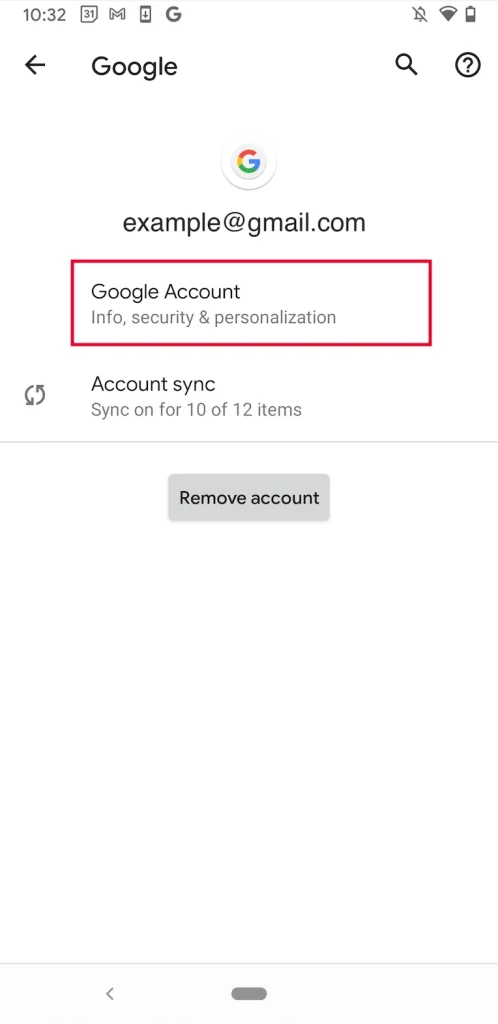
Android uses Google Smart Lock to manage auto sign in. To turn it off:
- Open the Settings app on your device.
- Scroll to find Google and tap it.
- Select “Smart Lock for Passwords.”
- Toggle off “Auto Sign-in.”
This stops apps and websites from signing you in automatically. You can still save passwords but choose when to enter them.
Ios Auto Sign In Controls
On iPhones and iPads, auto sign in is part of iCloud Keychain. To disable it:
- Go to Settings on your device.
- Tap on Passwords.
- Turn off “AutoFill Passwords.”
This prevents apps and browsers from filling in your saved passwords. You keep your login info but must enter it manually.

Credit: www.youtube.com
Tips To Secure Your Accounts After Disabling Auto Sign In
Disabling auto sign in improves your account security significantly. It stops automatic access to your accounts, reducing the risk of unauthorized entry. After turning off auto sign in, apply strong security practices to keep your accounts safe.
Follow these tips to protect your accounts and maintain control over your personal information.
Use Strong And Unique Passwords
Create passwords with letters, numbers, and symbols. Avoid common words or easy patterns. Use different passwords for every account to prevent multiple account breaches.
Enable Two-factor Authentication
Two-factor authentication adds an extra security layer. It asks for a code sent to your phone or email. This step stops hackers even if they know your password.
Regularly Update Your Passwords
Change your passwords often to limit risks. Set reminders to update passwords every few months. Avoid reusing old passwords.
Monitor Account Activity
Check your accounts for unusual activity regularly. Look for unfamiliar logins or changes. Report any suspicious actions to the service provider immediately.
Keep Your Software Updated
Update your browser, operating system, and apps often. Updates fix security holes and improve protection. Enable automatic updates where possible.
Use A Trusted Password Manager
Password managers store and generate strong passwords securely. They help avoid weak or repeated passwords. Choose a reliable tool with good reviews.

Credit: www.reddit.com
Frequently Asked Questions
How Do I Disable Auto Sign-in On My Browser?
To disable auto sign-in, go to your browser settings. Find the password or sign-in section. Turn off the option for auto sign-in or saving passwords. This stops automatic login on websites and improves your security.
Can I Remove Auto Sign-in On Windows 10?
Yes, open Settings and go to Accounts. Select Sign-in options and find the ‘Require sign-in’ setting. Adjust it to ask for a password every time. This disables automatic sign-in and protects your Windows account.
Why Is Auto Sign-in Risky To Use?
Auto sign-in stores passwords on your device. If your device is lost or hacked, others can access your accounts. Disabling it reduces the risk of unauthorized access and protects your personal information.
How To Remove Auto Sign-in On Mobile Devices?
On mobile, open your browser or app settings. Locate the passwords or sign-in options. Turn off the auto sign-in feature. This prevents apps or browsers from logging you in automatically.
Conclusion
Removing auto sign-in helps protect your privacy and data. You control when and how you log in. This makes your accounts safer from unauthorized access. The steps are simple and easy to follow. Taking a few minutes now can save future trouble.
Stay mindful of your security online. Keep your devices and accounts safe every day.