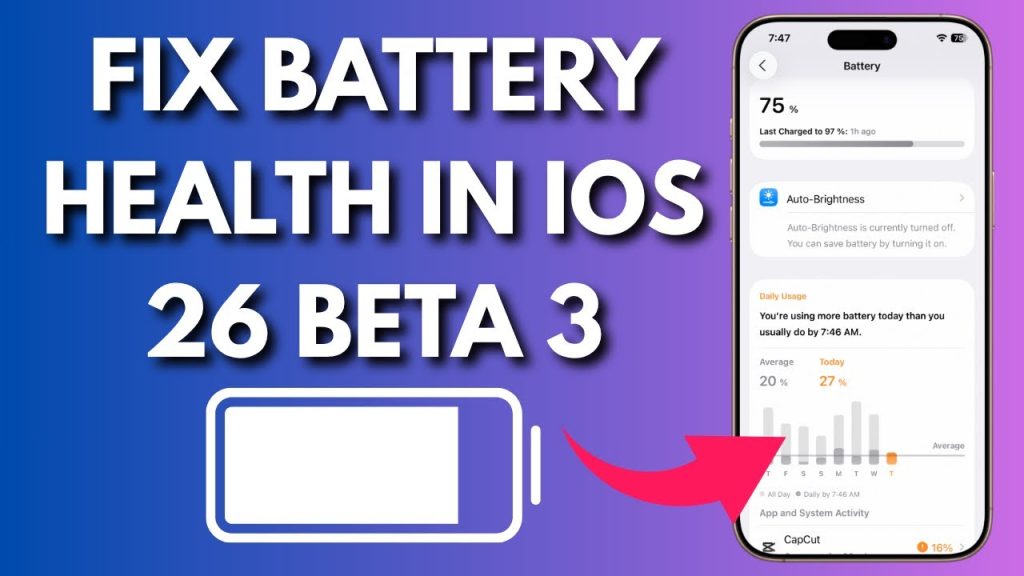
Have you ever wondered if keeping your phone’s auto brightness on is secretly draining your battery faster? You’re not alone.
Many people ask whether this handy feature helps save power or actually makes your battery die sooner. Understanding how auto brightness works and its impact on your device can help you get the most out of your battery life. Keep reading, and you’ll discover the surprising truth that could change how you use your phone every day.
How Auto Brightness Works
Auto brightness changes your screen brightness based on light around you. It helps keep the screen easy to see. It also saves battery by not using more brightness than needed. Understanding how it works helps to know if it drains battery.
Sensors Behind Auto Brightness
Auto brightness uses light sensors on your device. These sensors detect the amount of light in the environment. They send this data to the phone’s software. The software then adjusts the screen brightness accordingly. The sensors are small and use very little power.
Adaptive Brightness Adjustments
The software learns your brightness preferences over time. It changes brightness based on current lighting and your habits. For example, it may keep screen dimmer in dark rooms. Or make it brighter in sunlight. This adaptive system aims to balance screen visibility and battery use.
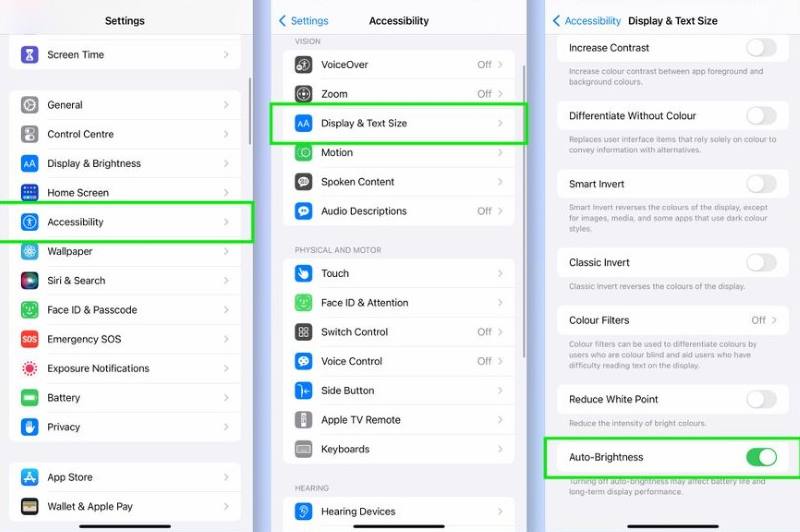
Credit: www.apeaksoft.com
Battery Impact Of Auto Brightness
Auto brightness adjusts screen light based on surroundings, which can save battery in dark places. Yet, frequent screen changes may use more power in bright areas. Overall, it balances convenience and battery life depending on your environment.
Energy Consumption Patterns
Auto brightness adjusts screen light based on surroundings. It uses sensors to detect ambient light levels. The screen brightens in bright places and dims in dark areas. This dynamic change helps save energy by avoiding constant high brightness. Sensors consume some power, but it is minimal compared to a bright screen running all the time.
In low light, auto brightness reduces screen brightness. This action lowers battery use significantly. In bright light, the screen may become brighter, using more energy. Yet, this only happens when necessary for visibility.
Comparing Auto And Manual Brightness
Manual brightness stays fixed until changed by the user. If set too high, it drains battery faster. If set too low, the screen may be hard to see. Auto brightness adapts instantly to light changes. It balances visibility and battery use better than manual settings.
Manual adjustment requires constant attention. Users might forget to lower brightness in dark places. Auto brightness solves this by automatic control. It often leads to better battery savings over time.
Factors Affecting Battery Drain
Understanding what affects your phone’s battery drain is key to managing how auto brightness impacts your device. Several factors come into play, shaping how much power your screen consumes when adjusting brightness automatically. Let’s dive into the main elements that influence this behavior so you can make smarter choices.
Screen Technology And Brightness Levels
The type of screen your device uses plays a big role in battery consumption. OLED screens, for example, light up individual pixels, so darker areas use less power. This means auto brightness might save battery by lowering brightness in dim environments.
On the other hand, LCD screens rely on a backlight that stays on regardless of what’s displayed. High brightness levels on an LCD can drain the battery faster because the backlight uses more energy as brightness increases.
Have you noticed your phone feels warmer when the screen is very bright? That warmth often signals increased power use. Managing your brightness level manually sometimes helps, but auto brightness adjusts it based on conditions, aiming to balance visibility and battery life.
Environmental Lighting Conditions
Auto brightness reacts to the light around you by raising or lowering screen brightness. Bright outdoor environments push the brightness higher, which naturally uses more battery. Indoors, the screen dims to save energy.
Think about your daily routine: walking outside on a sunny day vs. sitting in a dim room. Your phone adjusts brightness continuously, which can cause slight battery drain spikes when moving between light conditions.
Is your phone’s auto brightness too sensitive? Sometimes it increases brightness more than necessary. You can test this by observing your screen’s brightness changes in different lighting and decide if manual adjustments might save more battery.
Optimizing Battery Life With Auto Brightness
Auto brightness is designed to adjust your screen’s brightness based on the surrounding light, aiming to balance visibility and battery use. But how can you make this feature work best for your device without draining your battery faster than necessary? Understanding how to optimize auto brightness can extend your battery life while keeping your screen comfortable to view.
Adjusting Brightness Sensitivity
Not all auto brightness settings are created equal. Some devices allow you to tweak how sensitive the sensor is to changes in ambient light. Lower sensitivity means the screen won’t constantly adjust, which can save battery by reducing the frequency of brightness changes.
Try setting your brightness sensitivity to a moderate level and observe if your screen feels too dim or too bright in certain environments. It’s about finding the right balance for your daily routine, whether you’re indoors, outdoors, or in a dimly lit room.
Have you noticed your screen flickering or shifting brightness too often? Adjusting sensitivity might be the key to a smoother experience with less battery drain.
Using Battery Saver Modes
Battery saver modes often work hand-in-hand with auto brightness to extend your device’s power. When activated, these modes typically reduce the screen’s maximum brightness and limit background activity.
Enabling battery saver can also modify how aggressively auto brightness adjusts the screen, often keeping it dimmer than usual. This can add hours to your device’s battery life, especially if you rely heavily on your phone or tablet throughout the day.
Think about how often you use battery saver and whether you’ve noticed a difference in screen brightness behavior. Combining this feature with manual tweaks in auto brightness can provide the best results for battery optimization.
Common Myths About Auto Brightness
Auto brightness is a feature that adjusts screen light based on your surroundings. Many users worry it may harm battery life. Several myths about this feature cause confusion. Clearing these myths helps users make better choices for device settings.
Debunking Battery Drain Claims
Some believe auto brightness uses more battery than manual settings. The truth is, auto brightness saves power by lowering screen brightness in dark places. Higher brightness consumes more battery. Auto brightness reduces this by adjusting light smartly. It avoids wasting energy on unnecessary brightness.
Auto brightness uses small sensors that consume very little power. Their usage is negligible compared to screen brightness. So, auto brightness does not cause significant battery drain. Instead, it often extends battery life by avoiding excessive brightness.
Clarifying Screen Usage Misconceptions
Many think auto brightness causes the screen to flicker or change brightness too often. This idea comes from occasional brightness shifts in different lighting. These shifts are normal and help keep the screen visible and comfortable.
Auto brightness does not increase screen-on time or usage. It only changes light levels based on environment. The screen stays on as long as you use the device. Auto brightness ensures the screen is easy to see without wasting power.
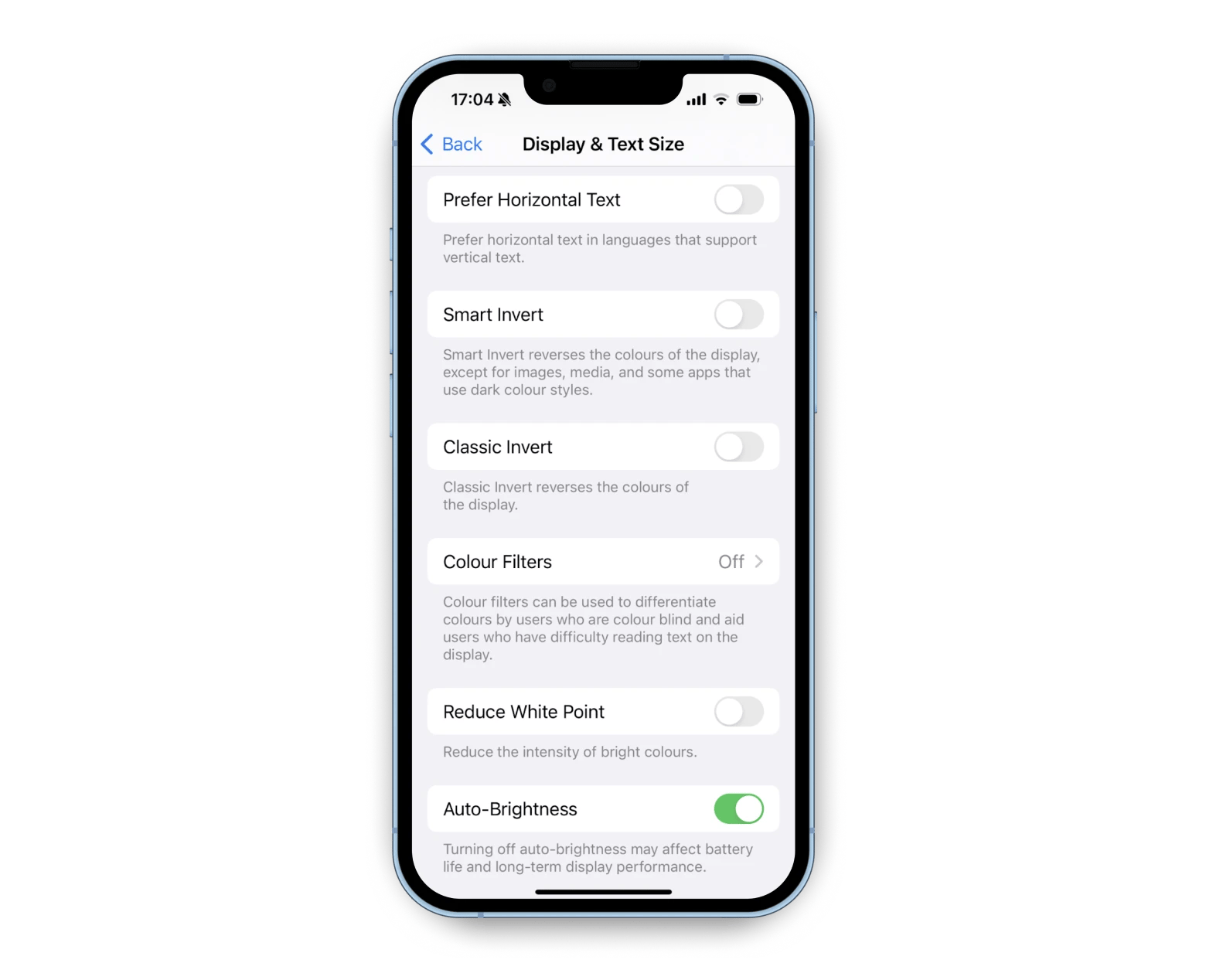
Credit: setapp.com
When To Disable Auto Brightness
Auto brightness is designed to save battery by adjusting your screen’s brightness based on ambient light. However, there are times when this feature might not perform as expected, causing more battery drain or a poor viewing experience. Knowing when to disable auto brightness can help you optimize both your phone’s battery life and usability.
Situations That Affect Performance
Auto brightness can struggle in environments with rapidly changing light, like walking between indoors and outdoors. This constant adjustment can make your screen flicker or become too bright, which actually uses more battery.
In low light settings, the sensor might keep the screen brighter than necessary, draining battery faster than if you set it manually. If you notice your battery draining quickly despite auto brightness being on, it might be time to turn it off.
Have you ever been in a meeting or movie theater where the screen suddenly brightened and distracted you? That’s another sign auto brightness isn’t working well for your current situation.
Manual Settings For Specific Needs
Disabling auto brightness lets you control exactly how bright your screen should be based on your preferences. This is especially useful if you use your device for reading or watching videos in a consistent lighting environment.
You can create manual brightness settings tailored to your activities—lower brightness for nighttime use and higher for outdoor work. Adjusting brightness yourself prevents unnecessary battery drain caused by sensor errors or overcompensation.
- Try setting your screen brightness to around 30-40% in dim rooms to save power.
- Increase brightness to 70-80% when outside but avoid maxing out unless absolutely needed.
By taking control, you avoid surprises and can better predict your phone’s battery life. How often do you check and adjust your screen brightness manually?

Credit: www.youtube.com
Frequently Asked Questions
Does Auto Brightness Impact Battery Life?
Auto brightness can impact battery life by adjusting screen brightness automatically. It helps save energy when in dim environments. However, in bright conditions, it might use more power. Overall, it can help balance battery usage, but its effect varies based on usage patterns and environmental lighting.
How Does Auto Brightness Work On Smartphones?
Auto brightness uses sensors to detect ambient light and adjusts the screen’s brightness accordingly. This ensures optimal visibility while conserving battery power. By automatically adapting to different lighting conditions, it reduces the need for manual adjustments, enhancing user convenience and potentially extending battery life.
Is Manual Brightness Better For Battery?
Manual brightness can be more efficient if you consistently set it to low levels. However, it requires frequent adjustments in varying lighting conditions. Auto brightness offers convenience and often optimizes battery usage by adapting to the environment, making it a preferable choice for many users.
Can I Disable Auto Brightness To Save Battery?
Yes, you can disable auto brightness to manually control screen brightness. By keeping it lower, you might save battery. However, this requires constant adjustments in different lighting conditions. Auto brightness can optimize battery usage by adjusting settings automatically, balancing visibility and power consumption efficiently.
Conclusion
Auto brightness helps save battery by adjusting screen light. It uses sensors to match brightness with surroundings. This keeps your screen from using too much power. Sometimes, it may use a little more battery. But overall, it balances comfort and energy well.
Turning auto brightness off might make the screen too bright. That can drain the battery faster. So, using auto brightness is often a smart choice. It keeps your phone easy to see and saves battery life. Try it and notice the difference yourself.